
Claude Chrome Extension for SEO: 6 Scheduled Shortcuts I Run on Autopilot
Auto-submit URLs to GSC, monitor competitor blogs, track AI Overview citations, and check Core Web Vitals. The exact prompts, URLs, and schedules I use in production.

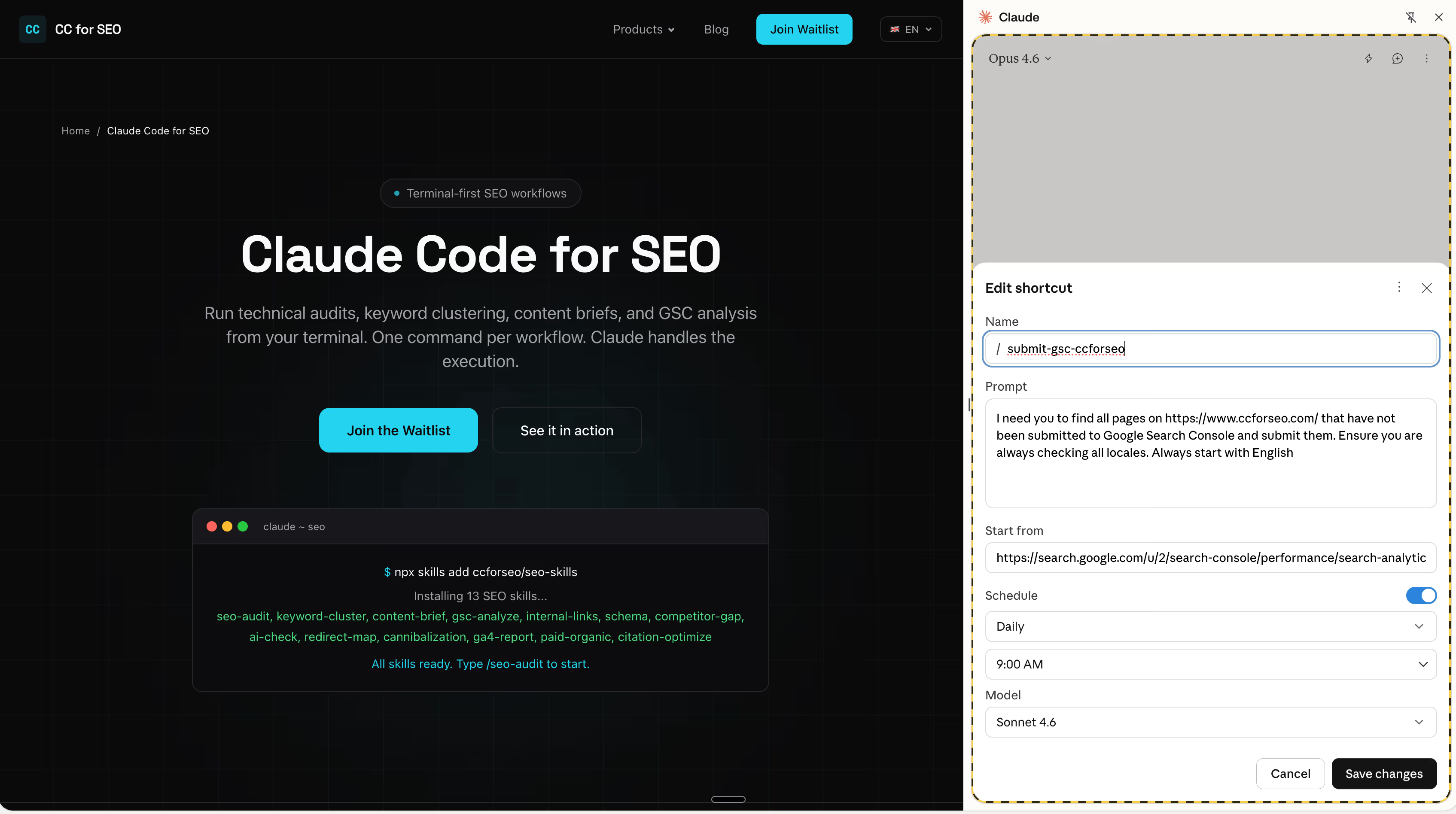
I spend 30-45 minutes every morning on tasks that require zero thinking. Submitting new URLs to Google Search Console. Skimming competitor blogs for new posts. Checking whether my pages show up in AI Overviews. Pulling GA4 data to spot traffic drops.
Claude in Chrome turns all of that into scheduled shortcuts that run themselves. You save a prompt with a starting URL, set a schedule, and the extension handles the rest while you work on things that require your brain.
Below are the 6 shortcuts I run in production, with the exact prompts, starting URLs, and schedules. Copy them, swap in your own domains, and you have an SEO monitoring system running inside your browser.
New: CC for SEO is launching — pre-built Claude Code skills for technical audits, keyword clustering, and GSC/GA4 analysis. Join the waitlist.
What Claude in Chrome Does
Claude in Chrome is Anthropic’s browser extension. It reads pages, clicks buttons, fills forms, and navigates websites from a side panel. Three features matter for SEO:
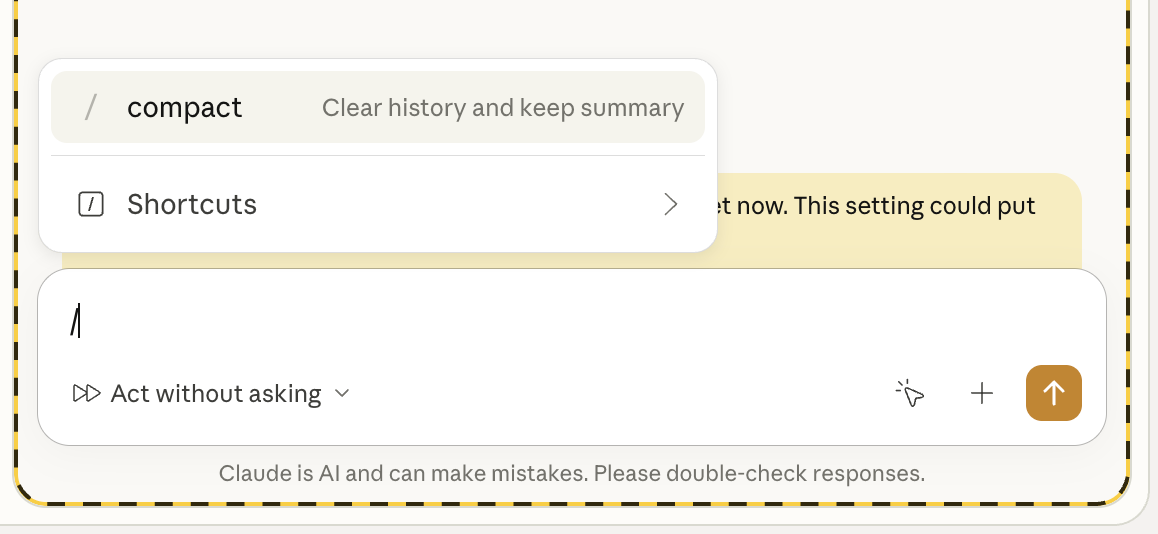
Shortcuts save a prompt and starting URL as a reusable slash command. Type / and pick it from a list.
Scheduling runs any shortcut on a recurring cadence: daily, weekly, monthly. Claude executes at the set time and notifies you when finished.
Workflow recording lets you demonstrate a task while Claude watches, then saves it as a shortcut automatically.
The extension works with your existing browser sessions. If you’re logged into GSC, GA4, Semrush, or Ahrefs, Claude can interact with those dashboards. No credentials to configure separately.
The 6 Shortcuts
1. Auto-Submit New URLs to Google Search Console
Finds pages on your site that haven’t been submitted to GSC and submits them through URL Inspection.
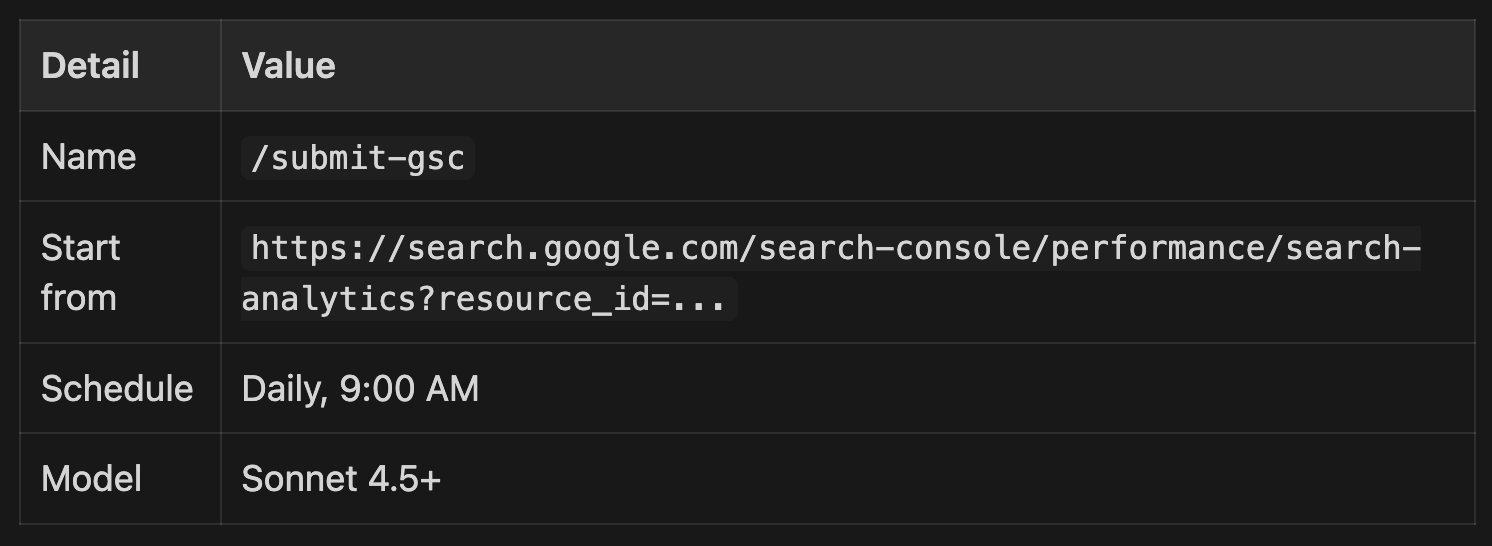
Prompt:
Find all pages on https://www.yoursite.com/ that have not been submitted to Google Search Console and submit them. Ensure you are checking all locales. Start with English.This catches new blog posts and programmatic URLs that sit undiscovered for days. Especially useful for sites with i18n where each locale generates a separate URL.
2. Weekly GSC Performance Snapshot
Pulls top queries, pages, and CTR data without exporting CSVs.
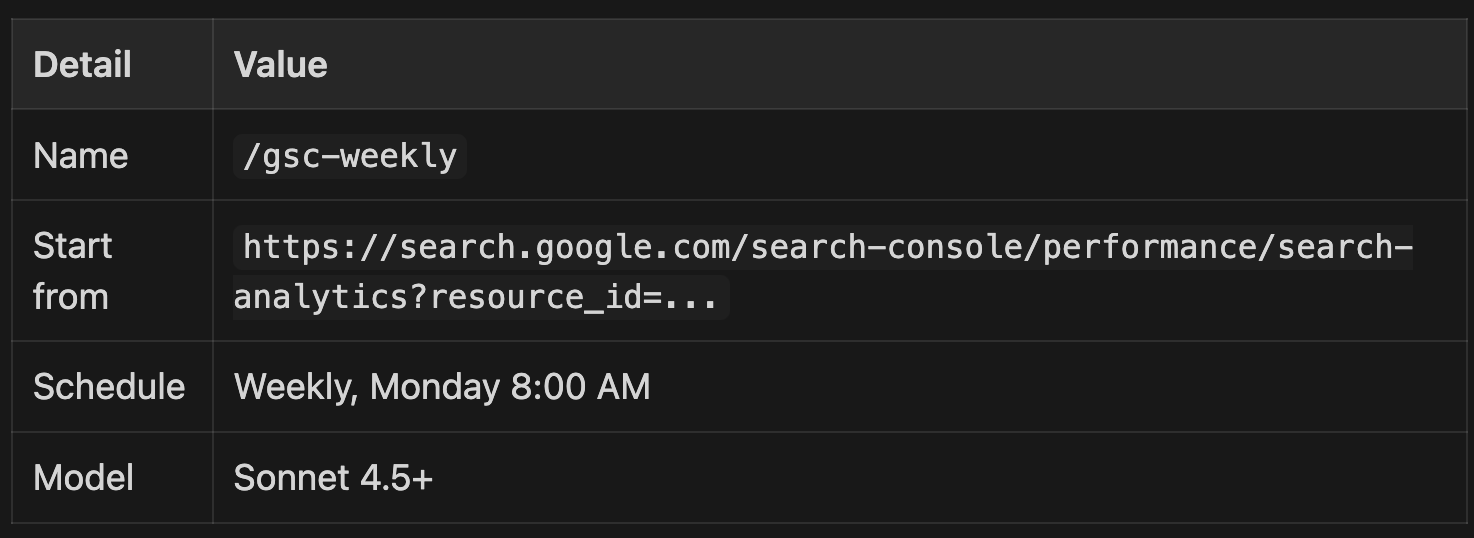
Prompt:
Extract the top 50 queries by clicks and top 30 pages by impressions for the last 7 days. Compare to the previous 7-day period. Flag any query that dropped more than 20% in clicks or any page that lost more than 30% impressions. Format as a table.3. Index Coverage Error Monitor
GSC’s indexing report buries problems behind multiple clicks. This surfaces them daily.
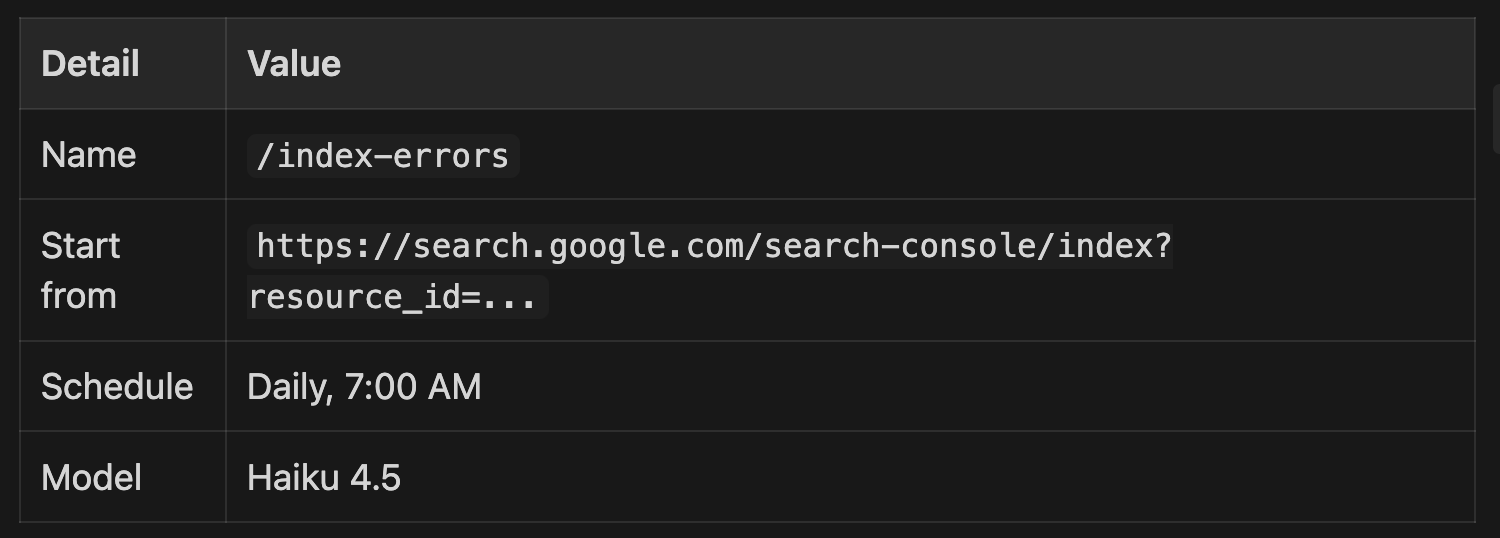
Prompt:
Check the Pages indexing report. List all error types with their page counts. If any error type has more than 10 affected pages, list the first 5 example URLs. Flag any new error types that weren't present yesterday.4. Competitor Blog Post Monitor
Track when competitors publish new content. Claude visits their blog, reads what’s new, and summarizes it.
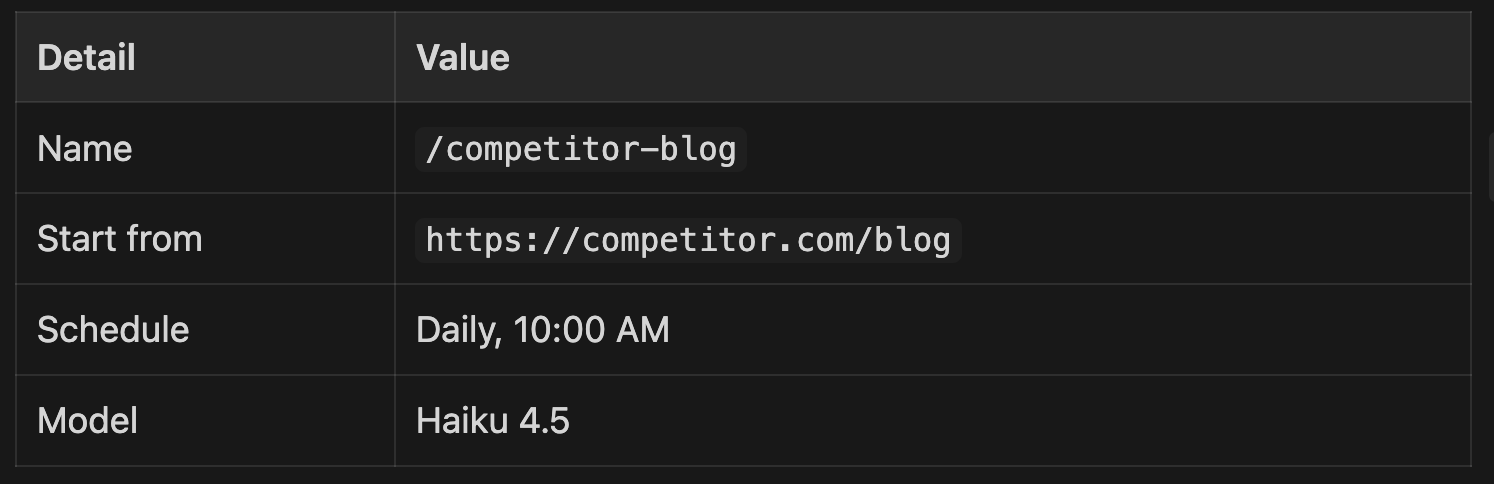
Prompt:
Scan this blog page for any posts published in the last 7 days. For each new post, extract: title, URL, publish date, and a 2-sentence summary of the topic. If no new posts exist, say "No new posts."Create one shortcut per competitor. Run 3-5 in parallel each morning for a daily competitive content briefing.
5. SERP Feature Tracker
Check whether your pages appear in featured snippets, People Also Ask, or AI Overviews for target keywords.
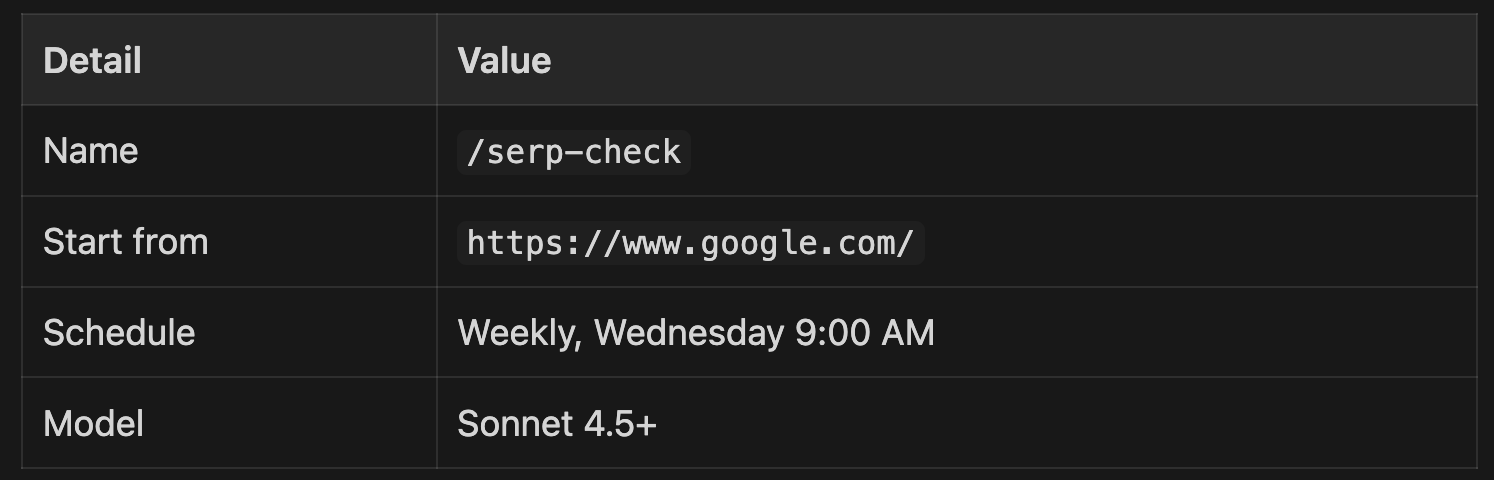
6. Google Business Profile Review Monitor
For local SEO: catch new reviews before your client sees them.
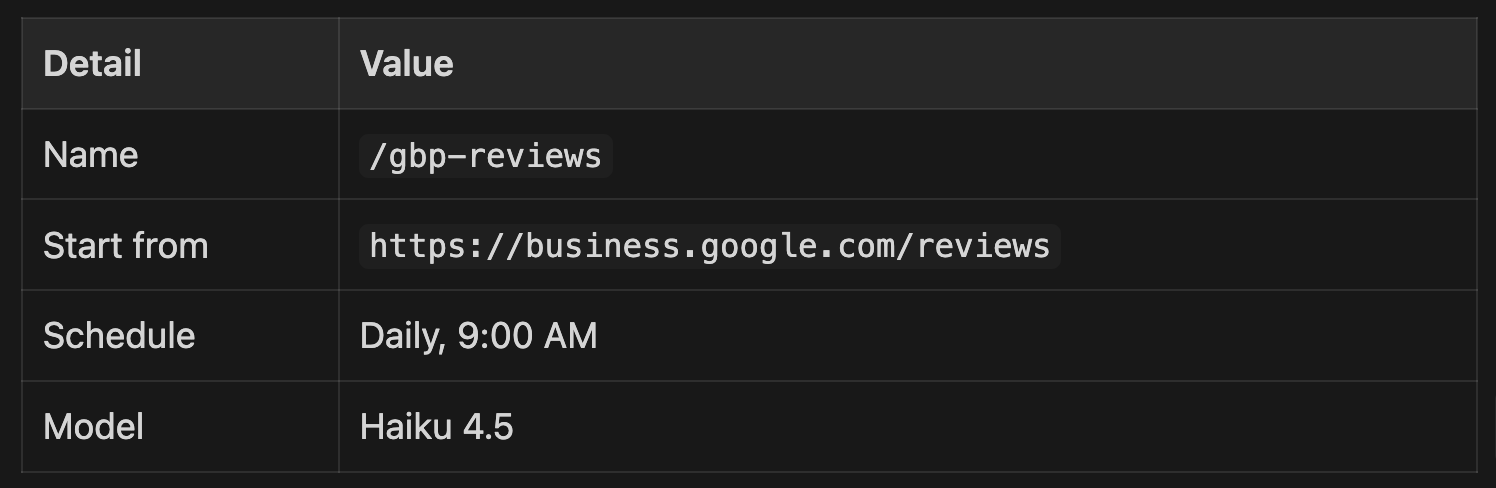
Prompt:
Check for new reviews posted in the last 24 hours. For each new review, extract: star rating, reviewer name, review text, and date. Flag any review with 1-2 stars as urgent. Summarize the overall sentiment of new reviews.How to Set Up Your First Shortcut
Setup takes about two minutes per shortcut:
Open the Claude side panel in Chrome (click the extension icon or press the keyboard shortcut)
Run the workflow manually first. Type your prompt, let Claude navigate and complete the task, verify the results
Save as shortcut. Click “Convert to task” in the conversation header, or hover over your prompt and click the save icon
Set the Start from URL. Edit the shortcut and paste the URL where Claude should begin
Toggle scheduling on. Click the clock icon, pick frequency and time, choose your model
Test once. Let it run and check the output before trusting it on autopilot
You can also use workflow recording: click the record icon, demonstrate the task yourself while narrating what you’re doing, and Claude generates the shortcut from your actions.
Tips for Reliable Shortcuts
Be specific in prompts. “Check my rankings” is too vague. “Search Google for [keyword], note the organic position of yoursite.com, record whether an AI Overview appears” produces consistent results.
Add verification steps. Include “Process all items” or “Check all 10 keywords” in your prompt. Claude in Chrome can stop mid-task on long lists without explicit scope instructions.
Match model to task. Haiku 4.5 handles simple data extraction (review monitoring, blog scanning). Sonnet 4.5 or Opus 4.6 for multi-step workflows requiring reasoning (comparing data, identifying anomalies). Pro plans only get Haiku 4.5. Max or Team plans unlock the more capable models.
Output to a persistent location. Claude in Chrome has no cross-session memory. Have your shortcuts paste results into a Google Doc or Sheet so you build a historical record.
Start small. Get 3-5 shortcuts running reliably before scaling to 15. Debug one broken workflow before adding the next.
What Shortcuts Don’t Replace
Claude in Chrome operates through the browser UI. It’s slower than API-based tools. A scheduled shortcut checking 10 keywords takes minutes, not seconds. For high-volume rank tracking (500+ keywords), you still need Semrush, Ahrefs, or a dedicated SERP API.
The extension can’t access financial services, work across browser sessions, or remember previous runs. It’s a workflow automation layer on top of existing tools.
Where it fits: the 15-30 minute manual tasks that aren’t worth building an API integration for but too tedious to repeat every day. Submitting URLs to GSC. Skimming competitor blogs. Spot-checking SERP features. These are the tasks that fall through the cracks when you’re busy.
Claude in Chrome vs. Claude Code
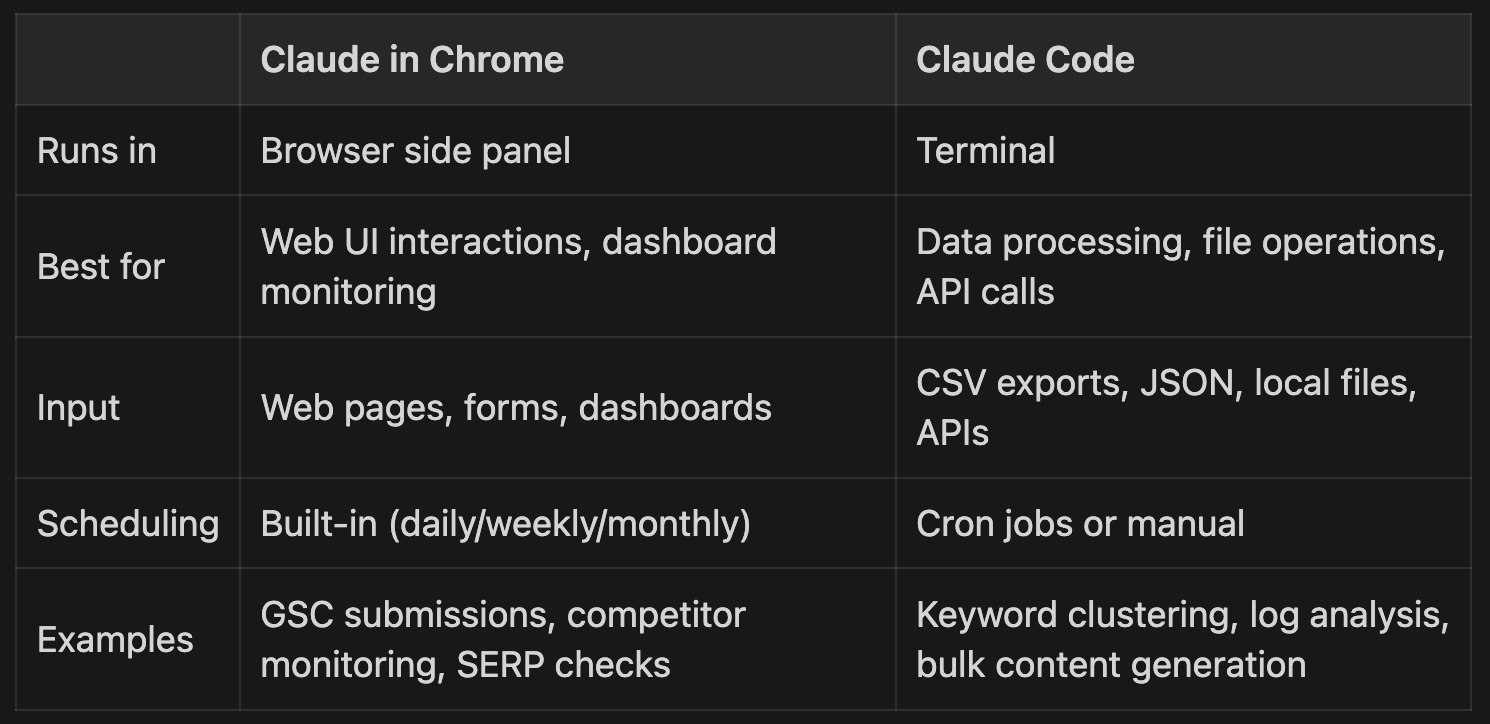
Plan Requirements
Claude in Chrome is available on all paid plans (Pro, Max, Team, Enterprise). Pro plans run Haiku 4.5 only, which handles simple shortcuts fine. Max and Team plans give you Sonnet 4.5 and Opus 4.6 for complex multi-step workflows.
Chrome needs to be open for scheduled shortcuts to execute. If Chrome is closed or your computer is asleep at the scheduled time, the task won’t run.
I’m Vytas Dargis, founder of CC for SEO and AI for Marketing Ops. Subscribe for weekly breakdowns of SEO workflows automated with Claude Code.